
Thermal label and barcode printers are widely used to create shipping labels in packing and fulfillment operations. However, the usual process requires the operator to peel each label from its backing paper and handle it before placing it on the package. This often results in contact with the adhesive side of the label.
For businesses where employees wear gloves, handle sensitive products, or simply want a cleaner and more efficient labeling process, avoiding contact with label adhesive can be an important consideration.
Why Shipping Labels Usually Require Hand Contact
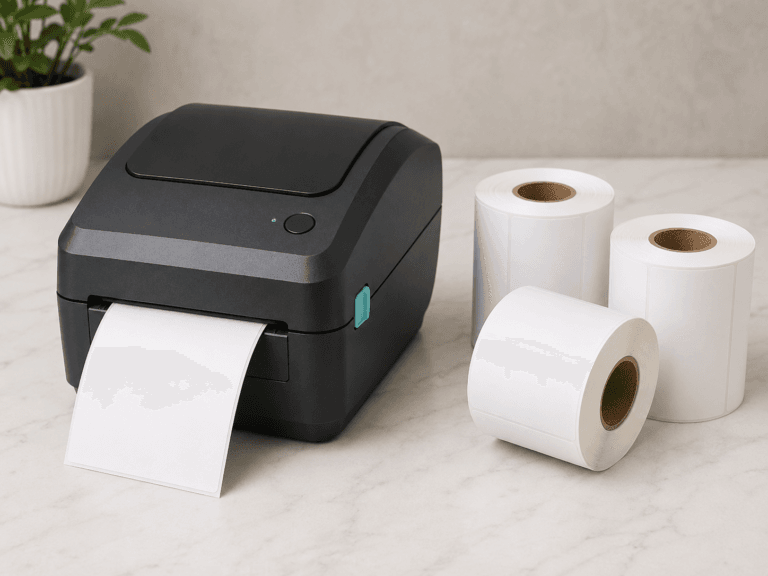
Most desktop label printers print labels onto rolls that include a release liner, commonly called backing paper. After a label is printed, it is normally dispensed with the backing paper still attached.
The operator must then peel the label from the backing paper and apply it to a package. During this process, hand contact with the adhesive is unavoidable.:
Linerless printers work differently. They use specially manufactured labels without backing paper and typically cut each label after printing. However, linerless printers and compatible linerless label materials are not suitable for every application.
For businesses using thermal label or barcode printers, there are several common methods used to apply shipping or other labels.
Method 1: Peel and Apply the Label by Hand
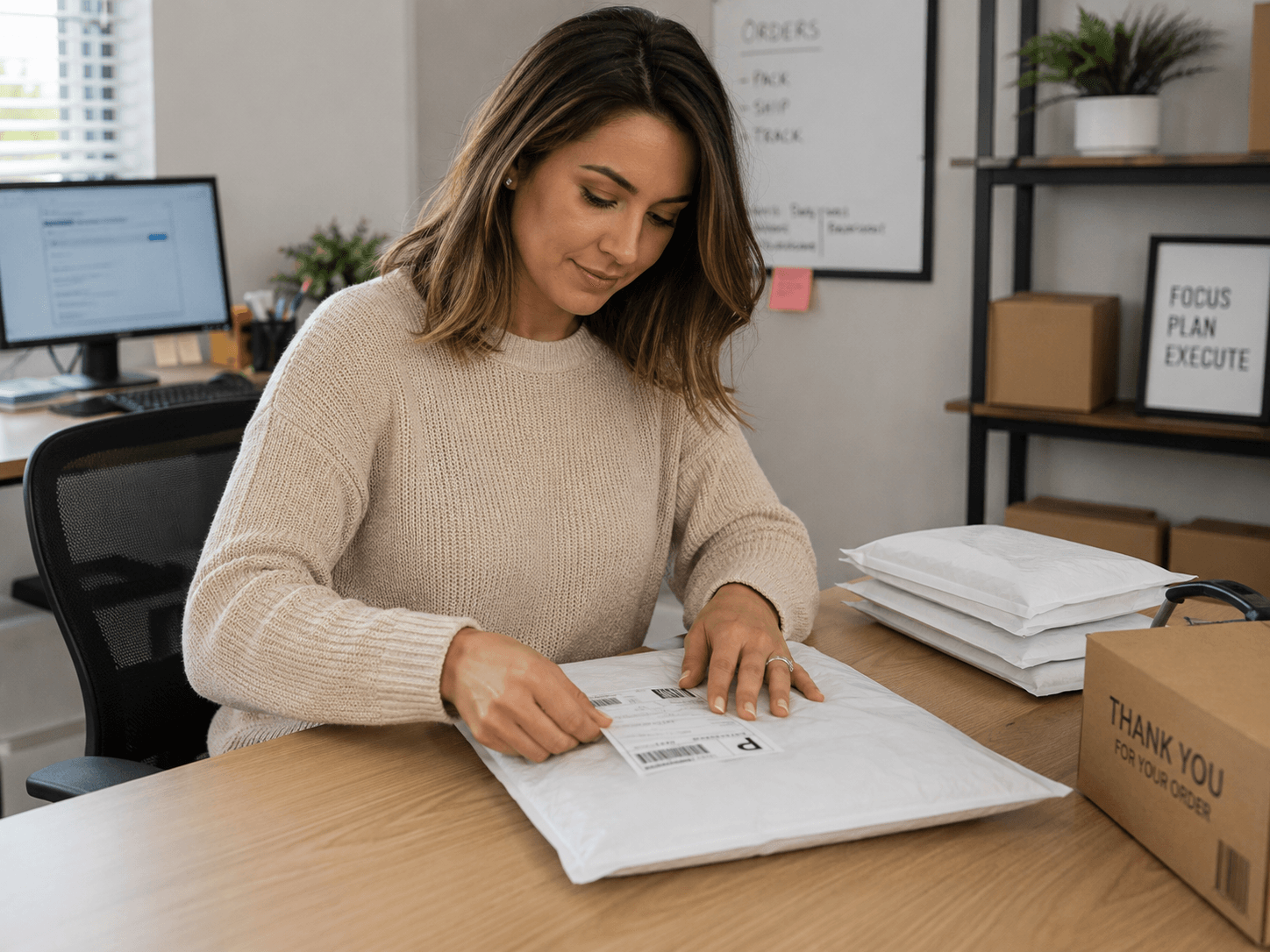
The most common method is to manually peel the label from its backing paper and apply it directly to the package.
This method is simple and requires no additional equipment, but it is time consuming and involves some contact with both the label and the adhesive.
The problem can become more noticeable when gloves are required. Label adhesive may stick to disposable or fabric gloves, making labels harder to position accurately. The label may fold over, wrinkle, or attach to the glove before it reaches the package.
Manual peeling may be suitable for occasional shipments, but it can become inconvenient when many labels must be applied throughout the day.
Method 2: Use a Printer Peeler or Dispenser Module
Many desktop label printers are available with an optional peeler, also called a dispenser module.
A peeler separates most of the printed label from the backing paper as the label exits the printer. The printer then pauses and presents the peeled label for the operator to remove.
This eliminates the need to manually peel the label from the liner, but the operator must still pick up the exposed label and transfer it to the package. Contact with the label adhesive still occurs.
A peeler can make label removal faster, but labels may continue to stick to gloves or fingers during application.
Method 3: Rewind Printed Labels for Automated Application
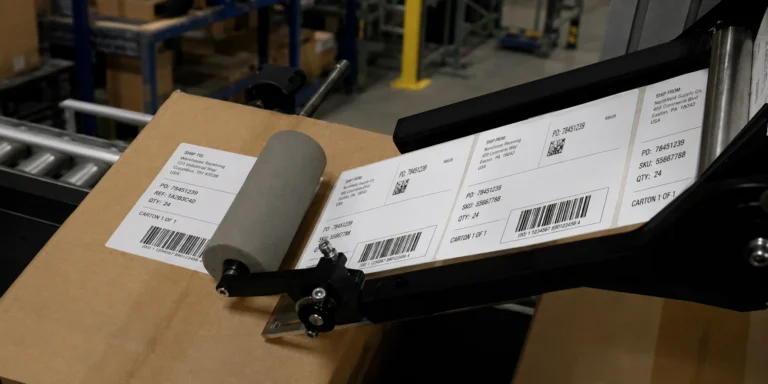
Operations that print and apply large quantities of identical or sequential labels may use a label rewinder.
As labels are printed, the rewinder collects them onto a new roll. The finished roll can then be loaded into a separate label applicator machine.
Label applicators range from semi-automatic systems to fully automated machines with conveyor systems, sensors, pneumatic components, and electronic controls.
One major advantage of an applicator machine is that the operator may not need to touch the label or its adhesive. These systems can also provide consistent label placement at high production volumes.
However, rewinding and automated application equipment is costly, difficult to set up and impracticable for most small shipping operation needs. It also separates printing from application, which may not be practical when each package requires a different shipping label.
Method 4: Apply Labels Directly from the Printer with the PrinterZip Z10 Label Printer Applicator
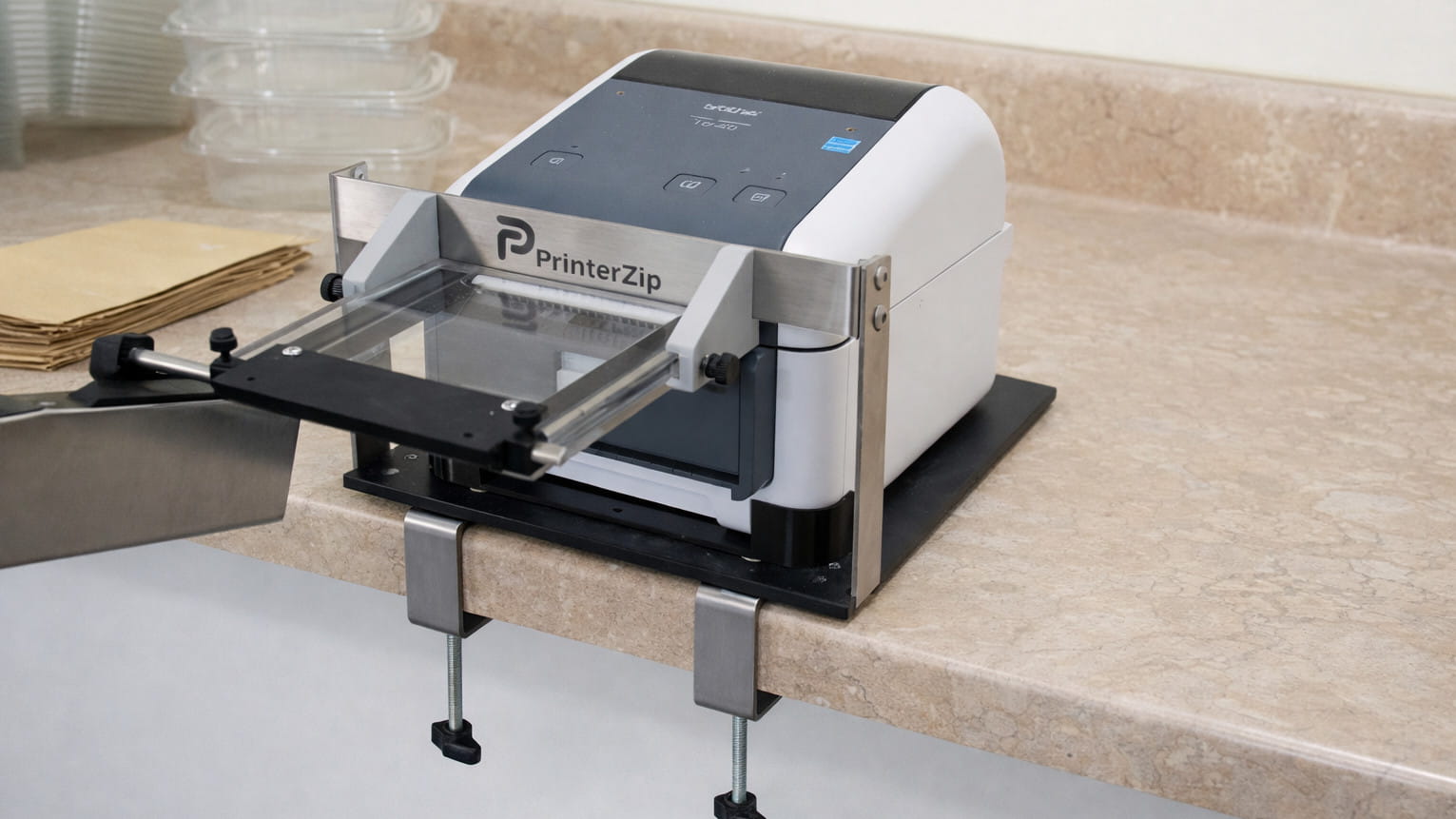
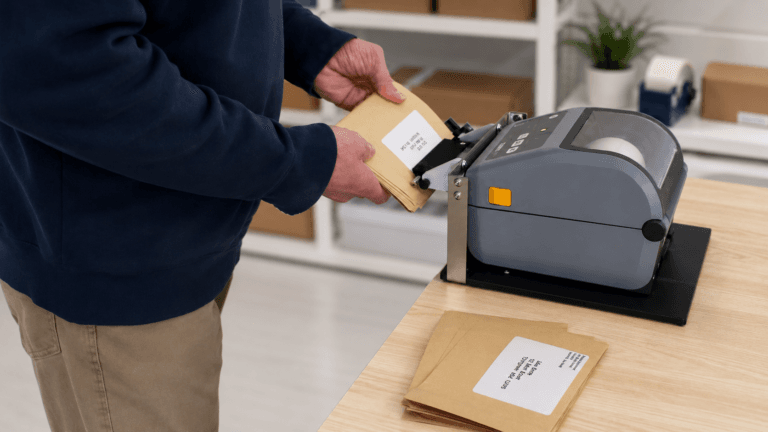
The PrinterZip Z10 provides another way to apply shipping labels without touching the adhesive.
The Z10 works with standard compatible desktop label printers such as the popular Zebra ZD 621 and ZD421 series models. As each label prints, the printer separates the label from its backing paper. Instead of requiring the operator to pick up the peeled label, the Z10 captures and supports it.
The operator then positions the package beneath the label and wipes the label directly onto the package.
Because the label moves from the printer to the Z10 and then directly onto the package, the operator does not need to hold the label or touch its adhesive.
This method can be especially useful for businesses that:
- Print shipping labels individually or in small batches
- Use gloves during packing or order fulfillment
- Want to reduce contact with label adhesive
- Need a simpler alternative to automated labeling equipment
- Print variable shipping labels that must be applied immediately
- Want straighter and more consistent label placement
The Z10 does not require the labels to be rewound onto a separate roll. Labels can be printed and applied one at a time as part of the normal shipping workflow.
Which Label Application Method Is Best?
The most appropriate method depends on the number of labels being applied and the type of workflow involved.
Manual peeling may be sufficient for occasional shipments. A printer peeler can make the backing paper easier to remove, although the operator must still handle the exposed label.
Rewinders and automated applicators are generally better suited to high-volume operations where large numbers of labels are applied in a repeatable production process.
For businesses printing individual shipping labels from a desktop printer, the PrinterZip Z10 offers an economical and practical middle ground. It allows labels to be applied directly from the printer without requiring the operator to touch the adhesive or invest in a complex automated labeling system.
Apply Shipping Labels with Less Handling
Avoiding contact with label adhesive can make the packing process cleaner, easier, and more consistent, especially when employees are wearing gloves.
By combining a compatible desktop label printer and the PrinterZip Z10, businesses can print and apply shipping labels directly to packages without manually peeling, holding, or transferring each label.